Noise Cancellation for Browser Calls
Dial straight from any browser tab and pay only low per minute rates. Nothing to download, and you add a number only when you want to receive inbound calls.
The essentials
- Outbound: pay as you go rates, no dedicated number to buy.
- Inbound: needs a US/Canada digital number ($2.14 to $5/month).
- No apps: runs in Chrome, Safari, Edge, Firefox.
How noise cancellation cleans up your browser calls
Intercalling layers browser level audio processing on top of cloud AI, so background noise drops away while your voice stays crisp. Setup is quick, the audio holds steady on every call, and you still pay only low per minute rates.
Filtering in your browser
Right in the browser, WebRTC built in constraints and a lightweight model knock out steady sounds such as fans and HVAC before the call ever leaves your tab.
AI cleanup in the cloud
Server side models read the incoming audio and strip out sudden sounds like typing, slamming doors, and street noise, all while keeping speech sounding natural.
Adaptive sensitivity
Adaptive logic shifts sensitivity to match whatever noise it detects, so the call holds steady as your surroundings change, for example walking from a street into a cafe.
What it connects to
Under the hood, Intercalling ties together WebRTC, Twilio PSTN bridging, and models from Deepgram and OpenAI for end to end noise suppression on both inbound and outbound calls. Your agents and AI assistants come through clearly whether they work remotely or from a noisy office, and the rates stay low.
Why clean audio pays off
Sharp calls make customers happier, cut down on repeated questions, and keep your team productive. Suppressing noise also trims transcription errors when you rely on live transcription and voice agents.
Switch on noise cancellation in three quick steps
Run through these steps to enable noise suppression and start getting cleaner calls right away.
Grant microphone access
When your browser asks, grant microphone access to intercalling.com. Noise cancellation has nothing to process until you allow it.
Open the call settings
Inside the call screen, head to Settings and switch Noise Cancellation, or AI Noise Suppression, to on. Then pick the sensitivity mode that fits your surroundings.
Test and fine tune
Run the built in mic test, tweak the noise mode, and swap to an external microphone or headset if you want the cleanest result.
Handy tips
- Keep the microphone near your mouth and pointed away from noisy sources.
- Wear a headset so your audio is picked up consistently.
- Save aggressive mode for heavy background noise, since it can trim some ambient speech.
Frequently Asked Questions
Does noise cancellation change how my voice sounds?
It mainly sharpens clarity by clearing out background sounds. The most aggressive modes can shave off a little room tone, yet your speech stays easy to understand. Stick with balanced mode for the most natural voice.
Is there server side AI involved?
Yes. Intercalling blends in browser processing with server side AI models so noise suppression stays strong across all kinds of environments.
Can I use noise cancellation with transcription and voice agents?
Yes. Cleaner audio raises transcription accuracy and lets autonomous voice agents hear callers more clearly.
What happens if my browser lacks advanced audio APIs?
Nearly every modern browser already includes the WebRTC features needed. On a browser that does not, you can still place calls but only with basic filtering, so update to the newest version for the best results.
Ready for sharper, cheaper calls?
Sign up in seconds and start placing noise free calls from your browser at low per minute rates. Nothing to download. Lift agent quality and cut transcription errors from the very first call.
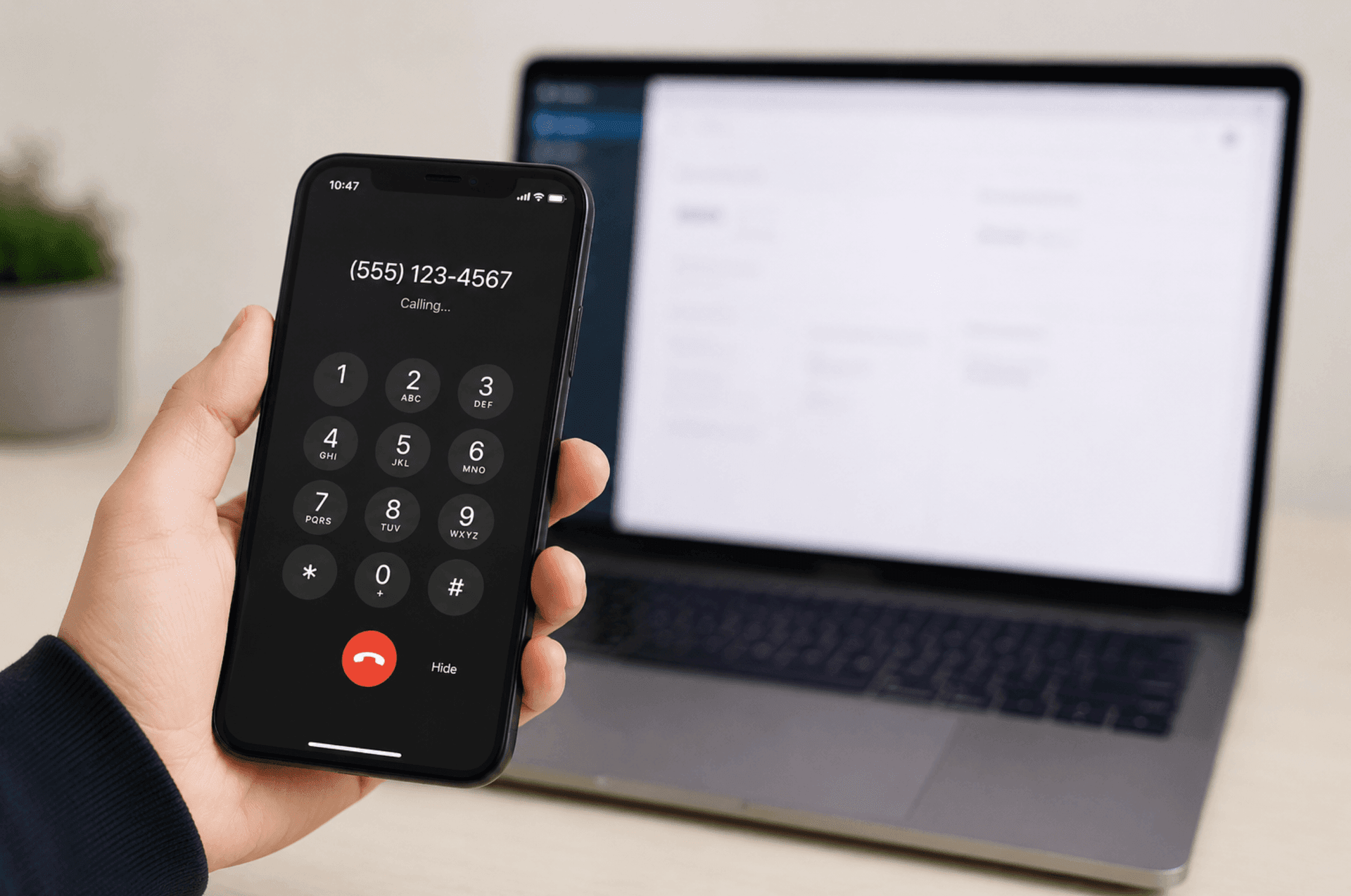
Call from any browser
No app and no SIM. Place the call from your computer or phone in seconds.
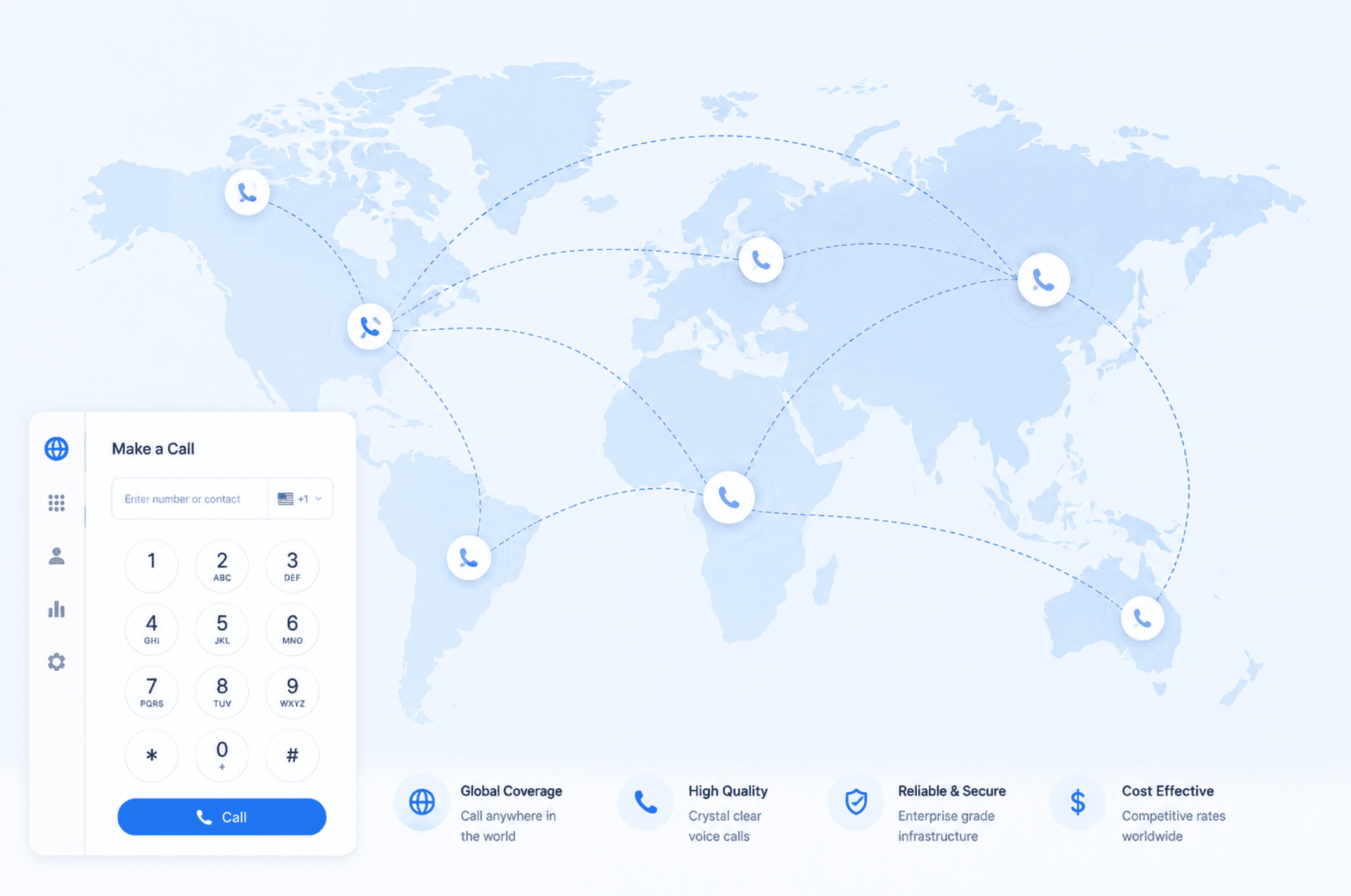
Low rates to 190+ destinations
Clear per minute pricing, shown before you dial. Pay as you go, no monthly fee.
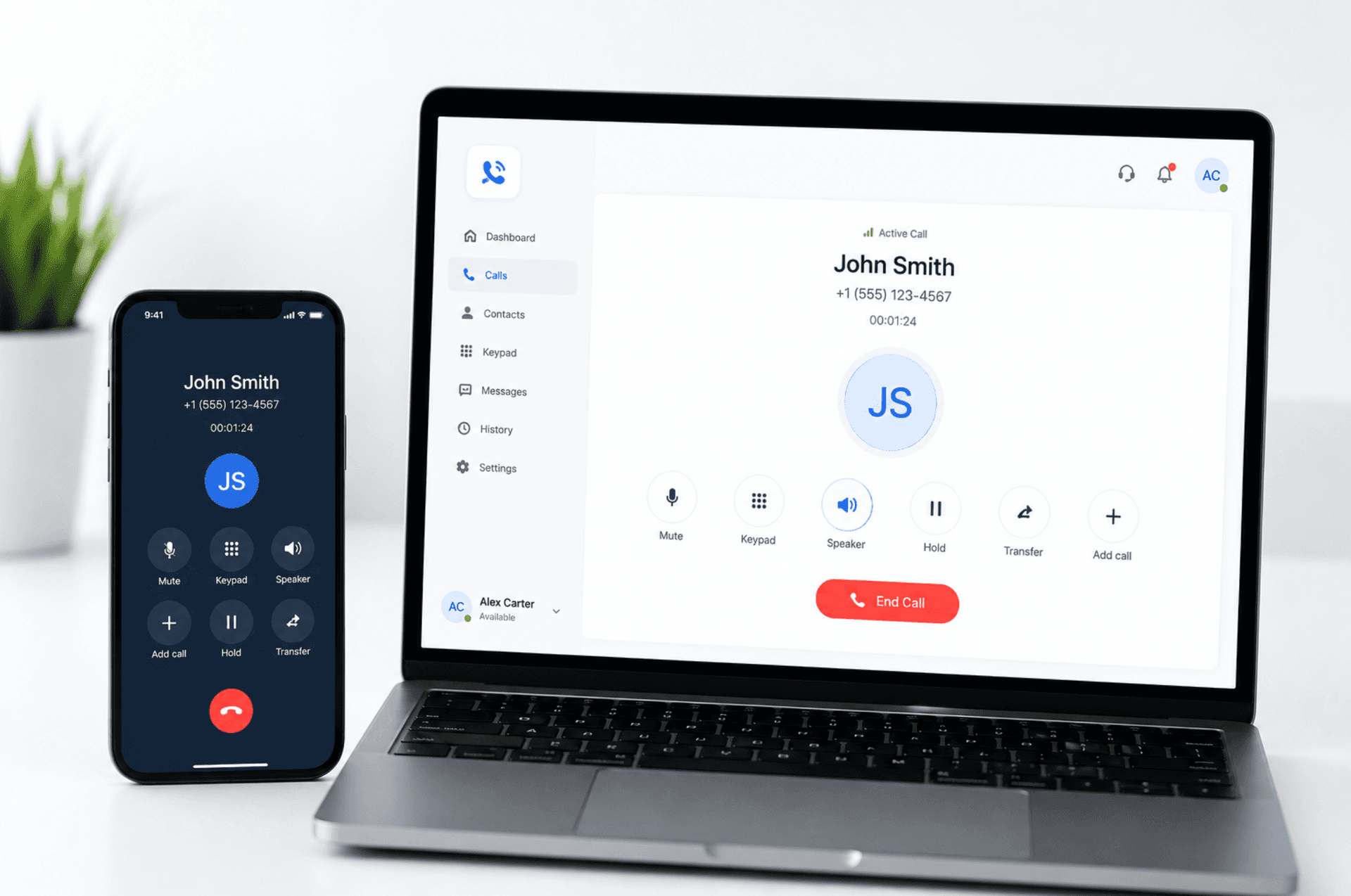
One balance, every device
Start on your laptop, continue on your phone, all at the same low rate.