Call from Xbox and PlayStation Browser
Dial from any browser tab and pay as you go, with cheap per minute rates and nothing to install. A number is optional and only needed if you want to receive inbound calls.
What it costs
- Outbound: Pay per minute, no dedicated number to buy.
- Inbound: Add a US/Canada digital number ($2.14 to $5/month).
- No apps: Runs in Chrome, Safari, Edge, Firefox.
Pricing at a glance: console calls
- Outbound calling: Reach any country at cheap per minute rates. No dedicated number to buy.
- Inbound calling: A callback line in your browser uses a unique US or Canada digital number ($2.14 to $5/month).
- App-free: Opens right in Chrome, Safari, Edge, or Firefox.
Place a Low Cost Console Call in Three Steps
Here is how to dial a phone number from Xbox or PlayStation with Intercalling and pay only for the minutes you use.
Open Intercalling
Head to intercalling.com in your console browser and log in. Everything runs in the tab, so there is nothing to install and no setup fee.
Allow Microphone
Approve microphone access when the browser prompts you. Plug in a USB headset, or use the controller headset adapter where the console supports it.
Dial and Connect
Punch in the number and hit Call. Intercalling links your browser session to the PSTN over secure WebRTC signaling, and billing is per minute as you talk.
Tips for Best Experience
- A wired USB headset gives the steadiest input and output audio.
- Keep console firmware current and confirm the browser supports WebRTC features.
- If the PlayStation browser will not allow mic access, finish the call from a phone or desktop used as a companion device.
Console Support and Headset Choices
See which consoles handle calling best and how to hook up audio gear for crisp, low cost calls.
Xbox (Edge)
Xbox Series consoles ship with a Chromium Edge browser that handles WebRTC and microphone permission prompts. That makes Xbox one of the easiest consoles to call from in the browser.
PlayStation
On PlayStation, browser behavior depends on the model and firmware, and some versions limit microphone access. When mic permissions are not available, place the call from a phone or laptop and leave the console free for audio playback.
Headset Options
You can use USB headsets, wired 3.5mm headsets plugged into the controller, or Bluetooth headsets where the console allows them. Wired connections stay the most dependable for low latency.
When to Use a Companion Device
When the console will not hand mic permission to the browser, just open Intercalling on a phone or laptop, make the call there, and keep listening on your console if you like.
Console Calling Features
Consoles get the same modern telephony toolkit you would use on desktop and mobile, all at low per minute pricing. Tap into AI assist, virtual numbers, and real-time analytics straight from the browser.
- WebRTC calling right inside the browser
- Crisp audio for live, in-call assistance
- Hands-free Intercalling that manages calls for you
- Pick up and run virtual numbers worldwide
Real Phone Numbers
Grab affordable virtual numbers across dozens of countries and use them to take and place calls from your browser session.
Global Reach
Dial mobiles and landlines worldwide at cheap per minute rates, straight from your console browser where it is supported.
Secure
Both signaling and media are guarded with industry standard encryption on every call.
Instant Setup
Create an account and be on a call in seconds, with no SIP clients to configure.
Frequently Asked Questions
Will Intercalling run on my Xbox?
On Xbox Series consoles, the Edge browser usually handles WebRTC and microphone permissions, so Intercalling works right in the browser.
Can I use my gaming headset?
Yes. For the cleanest audio, go with a wired USB or 3.5mm headset plugged into your controller. Whether Bluetooth works comes down to the console.
What if the PlayStation browser blocks mic access?
Mic restrictions differ by firmware. When access is blocked, dial from a phone or laptop as a companion device and keep monitoring the audio on the console.
Is there anything to install?
No. Intercalling lives entirely in the web browser. Log in, grant permissions, and you are ready to call at low per minute rates.
Ready to call from your console for less?
Create an account and start dialing from your Xbox or PlayStation browser in seconds, paying only cheap per minute rates.
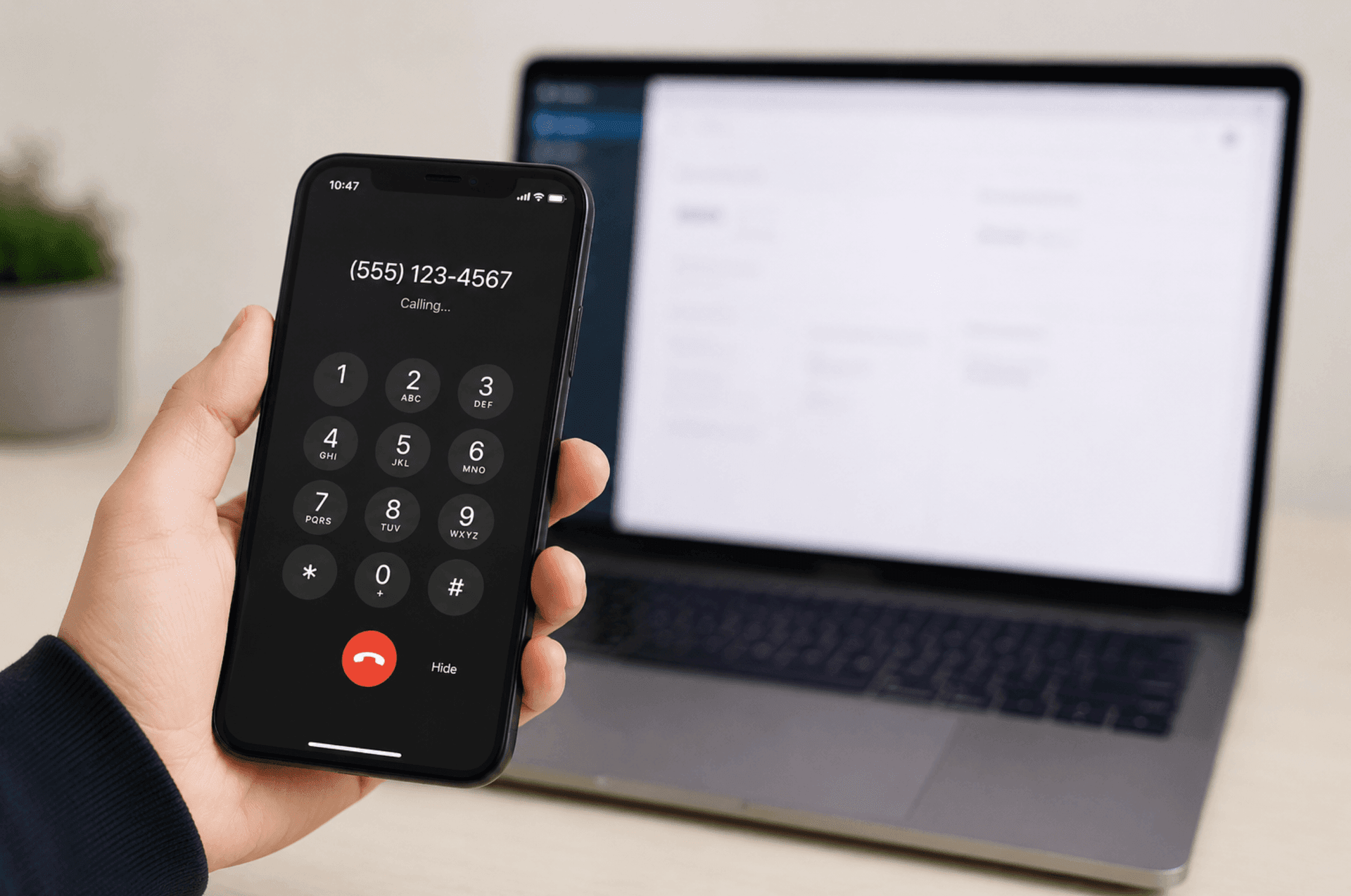
Call from any browser
No app and no SIM. Place the call from your computer or phone in seconds.
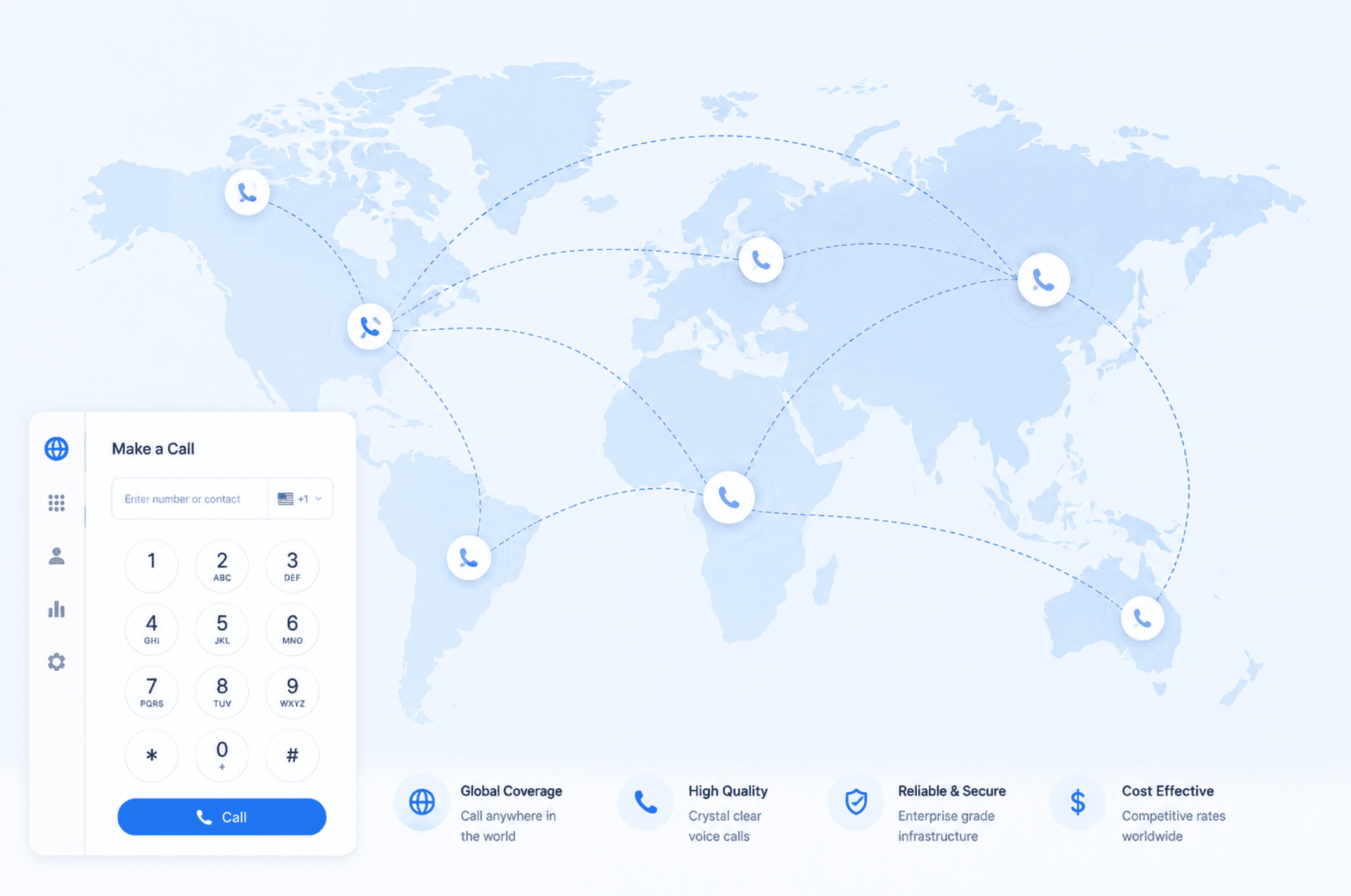
Low rates to 190+ destinations
Clear per minute pricing, shown before you dial. Pay as you go, no monthly fee.
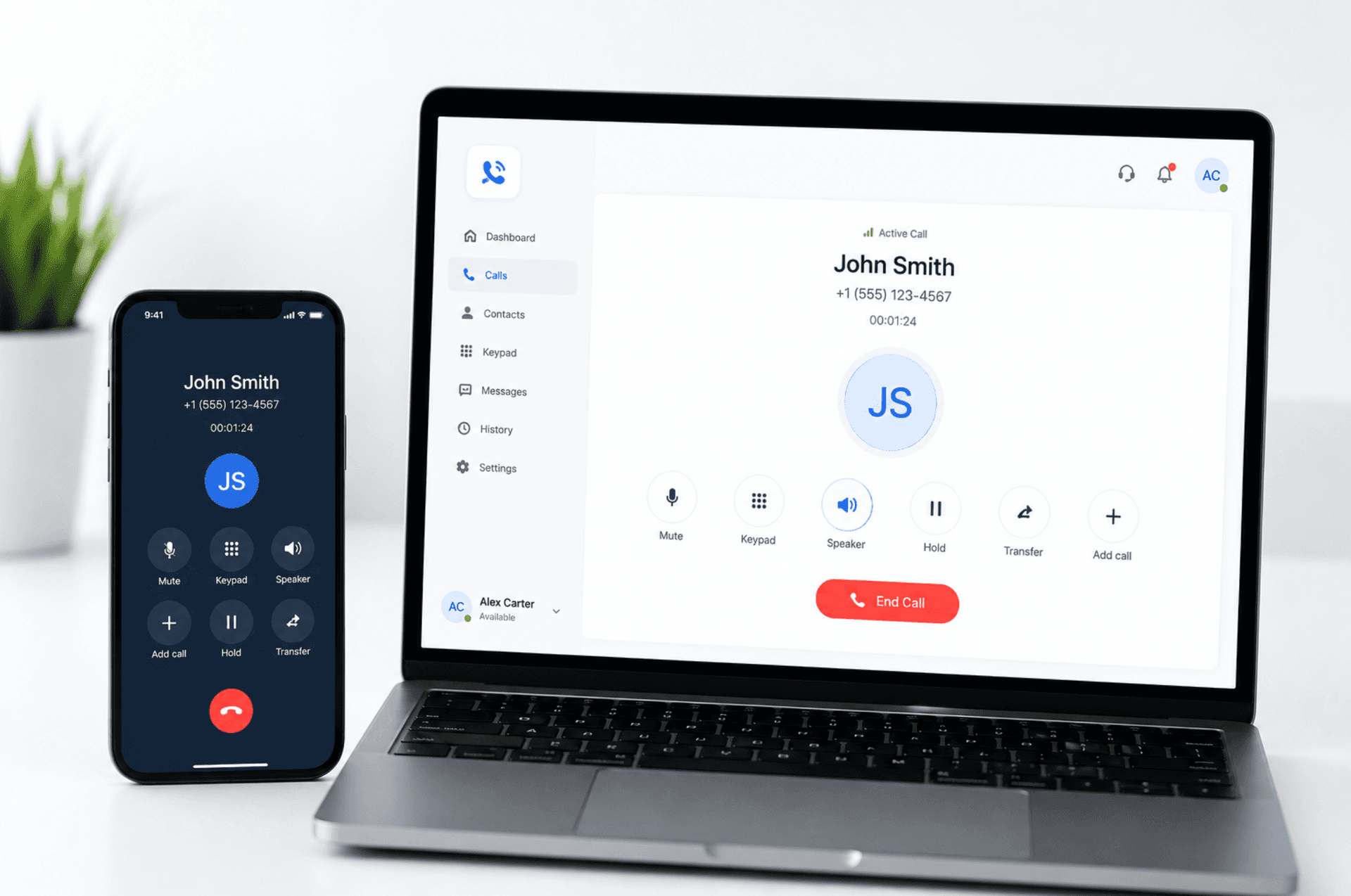
One balance, every device
Start on your laptop, continue on your phone, all at the same low rate.