Private Brave Browser Calls at Cheap Per Minute Rates
Intercalling links your Brave browser to phone numbers worldwide over secure WebRTC, with transparent pay as you go pricing and low per minute rates. Below you will see how Brave guards your privacy, how to set permissions, and how we handle audio, recordings, and AI processing.
Why Brave Keeps Your Calls Private
Privacy sits at the core of Brave. Pair it with Intercalling and you get the browser's built in protections alongside our own platform controls, all while paying only low per minute rates.
Encrypted Audio
Your voice travels over WebRTC, encrypted with DTLS and SRTP, while signaling and API traffic ride on TLS. Nobody can listen in while the call is in transit.
Tracker Blocking in Brave
By default Brave stops cross-site trackers and fingerprinting. That cuts down on profiling as you place calls straight from the web.
Controls in Your Hands
Microphone access, recordings, and AI transcription are all yours to manage. Switch off any optional feature inside your Intercalling account to keep data sharing to a minimum.
Fast Setup for Secure Calling in Brave
- Head to intercalling.com and log in.
- Tap the lock icon in the address bar and grant Mic permission for the site.
- Should Brave shields interfere with the connection, turn shields off for intercalling.com or approve the needed permissions in site settings.
- Inside Intercalling settings, switch off call recording or transcription if you would rather no third-party service touch your audio.
- Dial out on a virtual number so your personal carrier details stay private when you call landlines or mobiles.
Mic Permissions and Brave Site Settings
No sound, or the microphone is not picked up? Review your Brave site permissions. The steps below are the ones that fix it most often.
Grant Mic Access
Select the lock icon in the address bar, find Permissions, and set Mic to Allow. Refresh the page once the permission is updated.
Shields and Your Connection
Brave shields sometimes block the third-party resources WebRTC relies on to connect. If you run into connection errors, switching shields off for intercalling.com usually clears them.
Privacy Controls Built Into the Platform
Intercalling hands you fine grained say over how your call data is handled, all on transparent pay as you go pricing.
Recordings
Flip recording on or off for each call. When it is on, the files are encrypted and reachable only by accounts you authorize.
Transcription and AI
When you enable them, transcription and AI features run through secure transcription services. Leave them off if you would rather keep audio away from any third-party processing.
Virtual Numbers
Keep business calls apart from your personal line with a virtual number. It limits how much data ties back to your personal carrier account.
Frequently Asked Questions
Is the audio from my microphone encrypted while it travels?
Yes. WebRTC protects your audio with industry standard encryption, and Intercalling adds TLS for signaling plus secure links to providers.
Does Intercalling pass my audio to AI services on its own?
No. Your audio reaches transcription or AI services only when you have switched those features on, and you can turn them off in settings whenever you want.
Do I have to disable Brave shields to use Intercalling?
Rarely. In most cases shields cause no trouble, but if connectivity acts up, turning shields off for intercalling.com clears the blocking.
How can I keep the platform from saving recordings?
Switch off automatic recording in your account settings. You can also remove any stored recordings and transcripts straight from your dashboard.
Ready to make cheap, private browser calls in Brave?
Sign up, allow microphone access, and start calling securely from your browser at low per minute rates. Recordings and transcription stay under your control at all times.
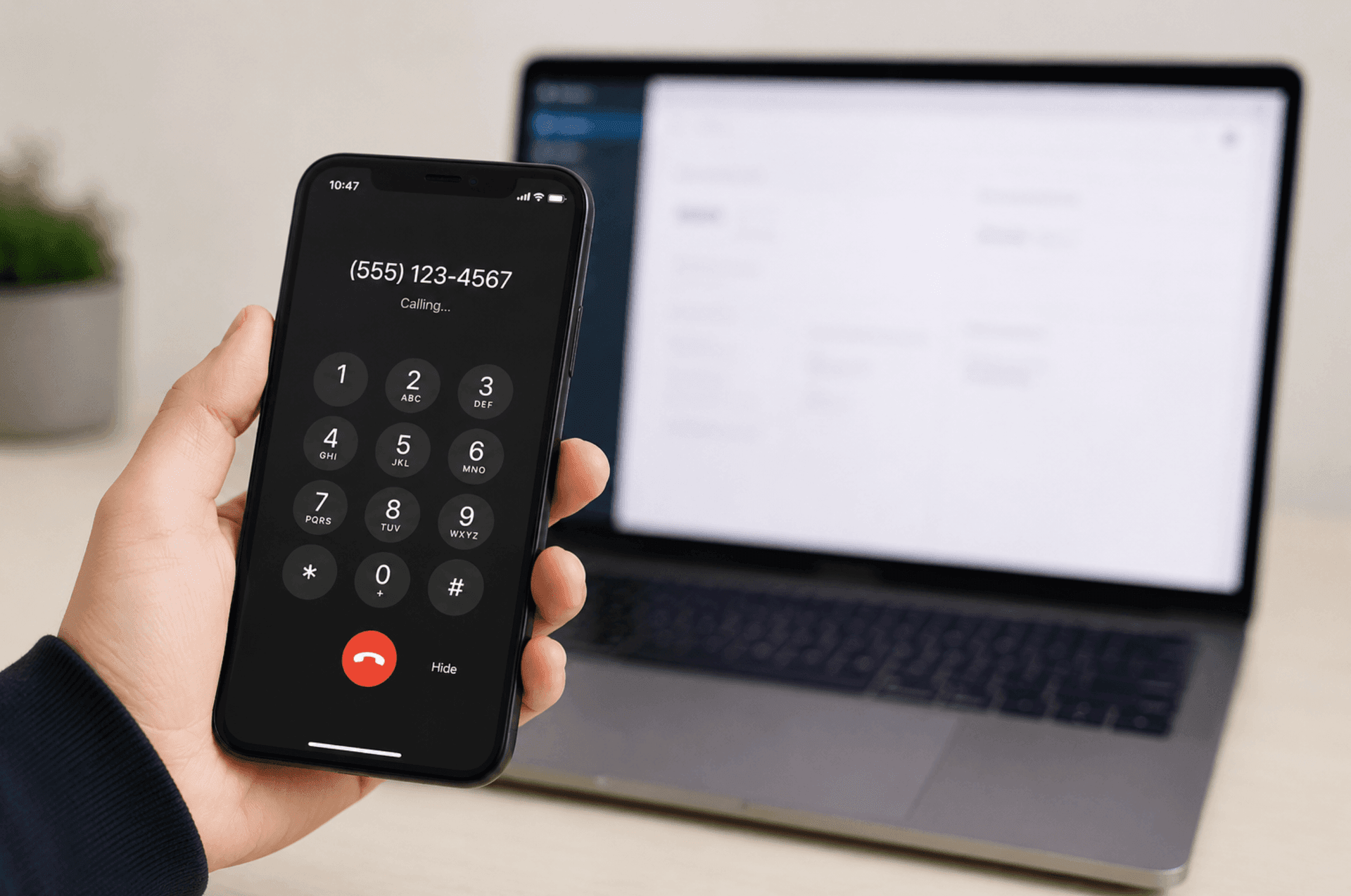
Call from any browser
No app and no SIM. Place the call from your computer or phone in seconds.
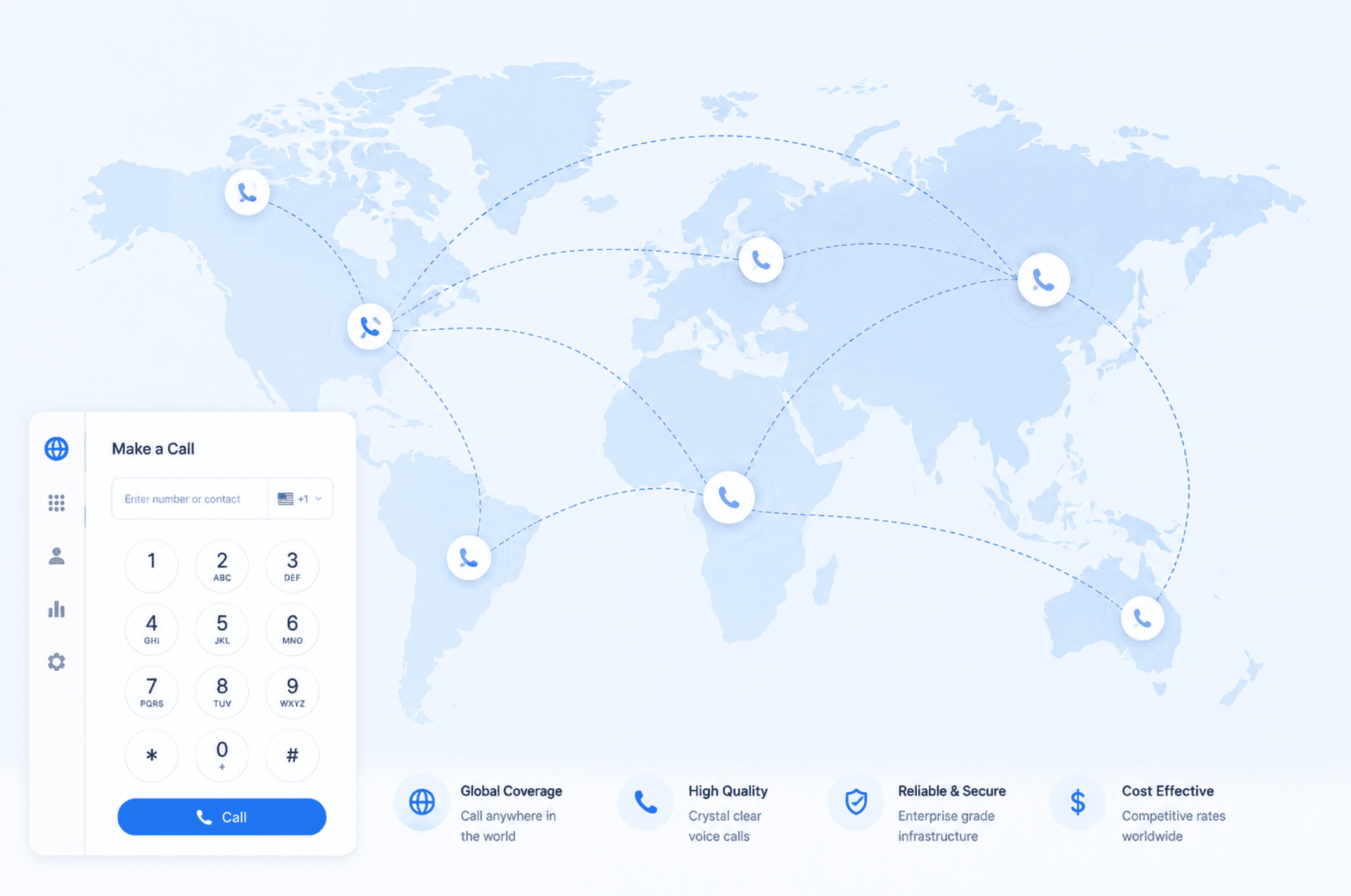
Low rates to 190+ destinations
Clear per minute pricing, shown before you dial. Pay as you go, no monthly fee.
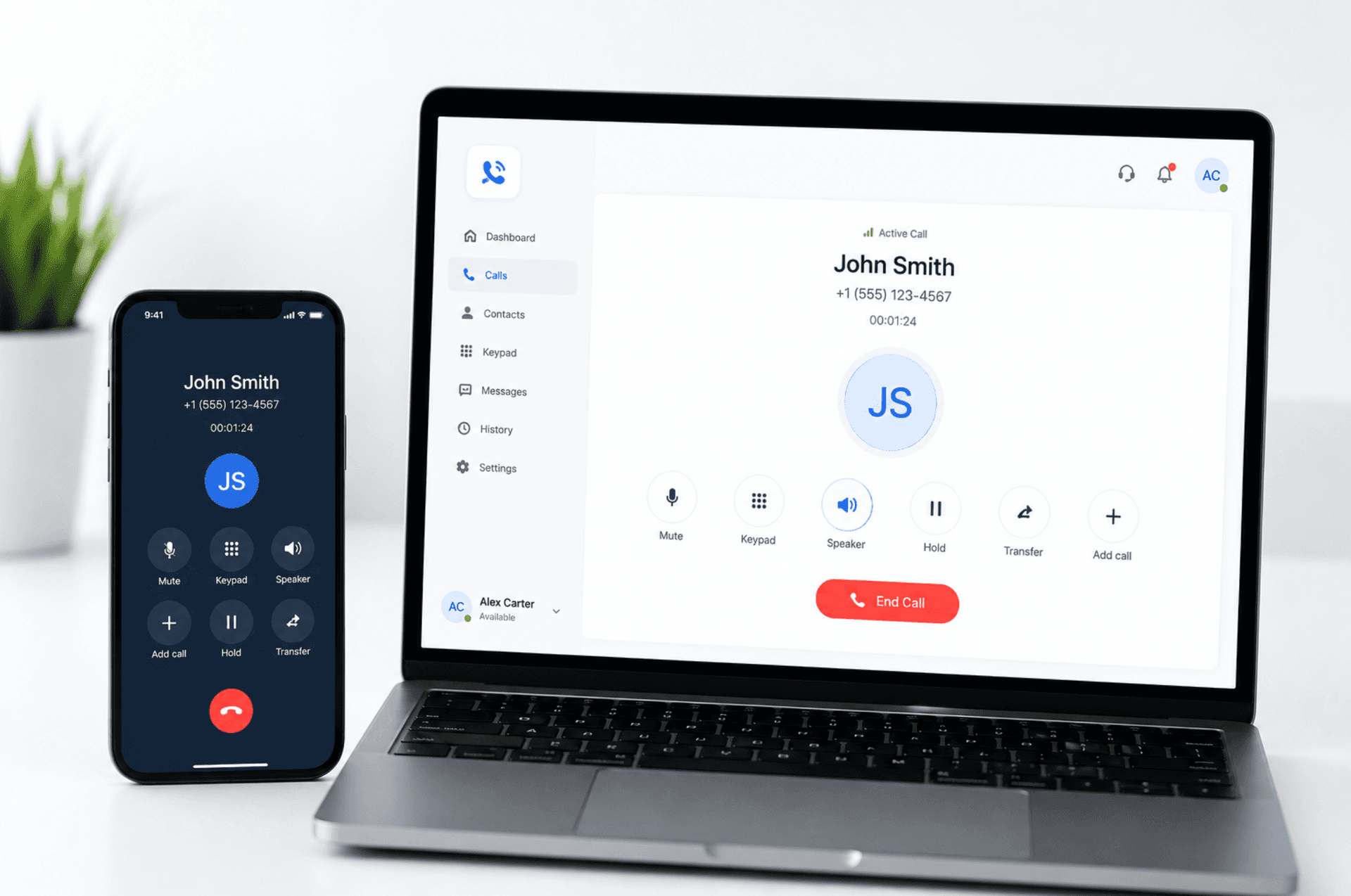
One balance, every device
Start on your laptop, continue on your phone, all at the same low rate.