Cheap Per Minute Calls from a Library or Shared Computer
Ring any number right from your browser within seconds at cheap per minute rates. Nothing gets installed, and outbound calls never require a phone number of your own.
The basics
- Outbound: Cheap per minute pricing with no dedicated number to buy.
- Inbound: Attach a US/Canada digital number from $2.14 to $5/month.
- No apps: Works inside Chrome, Safari, Edge, and Firefox.
Making a Call from a Library or Shared Computer
A handful of quick steps keep your privacy protected and your audio crisp on any public workstation, all at cheap calling rates.
Plug in a Headset
Hook up a wired or USB headset so your conversation stays private and ambient noise stays low. Steer clear of the built-in speakers.
Grant Mic Access
Once the prompt shows up, allow microphone access, then double check the correct input device in your browser settings before you dial.
Sign Out and Wipe Data
After the call finishes, sign out of your Intercalling account and clear the browser data wherever the workstation permits it.
Quick Checklist
- Sign in to Intercalling with Chrome, Firefox, or Safari
- Carry your own headset to keep calls private
- Allow microphone access and select the right device
- Sign out and close the browser tab once you are done
Keeping Your Account Safe on Shared Devices
Easy habits that protect your account and your cheap calls on public workstations.
Skip Saving Credentials
Turn down any offer to save passwords or form data in the browser. Store those in a password manager on a device you own.
Reset Mic Permissions
After the call ends, revoke microphone access in browser settings if the machine seems sketchy. Shutting the tab generally clears any permissions still active.
Network and Firewall Tips
Certain public networks limit voice apps. Here is how Intercalling gets around those restrictions.
Runs on Most Networks
Intercalling runs on WebRTC, so it links up across most public Wi-Fi networks and hotspots that allow ordinary browser traffic.
When Ports Are Blocked
Should outbound UDP or WebRTC be turned off, move to a different network or request temporary access from library staff. Intercalling switches to secure connections wherever they exist.
Nothing to Install
Because each call happens in the browser, there is no software to configure, which makes locked down public machines simple to use.
Why Intercalling Works Well on Public Computers
Intercalling connects your browser straight to the phone network so you can make and receive calls without any app. Backed by virtual numbers, , and real-time analytics, along with cheap per minute pricing, it fits professionals who work from anywhere.
- Make international calls from any supported browser
- No software to install, you begin in seconds
- Purchase and handle virtual numbers across regions
- and autonomous voice agents are on hand
In Browser Calling
Dial any real phone number directly within Chrome, Firefox, or Safari.
Virtual Numbers
Buy and manage phone numbers throughout the US and Canada right from your browser.
Secure
Encrypted connections paired with enterprise-grade reliability keep your conversations protected.
Instant Setup
Log in and begin calling within seconds, with no technical setup needed.
Frequently Asked Questions
Is it possible to dial international numbers from a library computer?
Yes. Intercalling lets you reach numbers around the world straight from your browser. Just confirm the network permits WebRTC traffic.
Must I install anything on a shared machine?
No. Intercalling runs in the browser with no installs or plugins of any kind.
What keeps my privacy safe once the call is over?
Sign out, close the browser tab, and wipe browser data when you can. Bring your own headset and skip saving passwords.
What happens if the library network blocks voice traffic?
Switch to another network or check with staff. Certain networks limit UDP or WebRTC, which can stop calls from connecting.
Ready to start calling from any computer?
Create an account and begin calling from library computers, coworking spaces, or hotel business centers. There are no app installs to worry about.
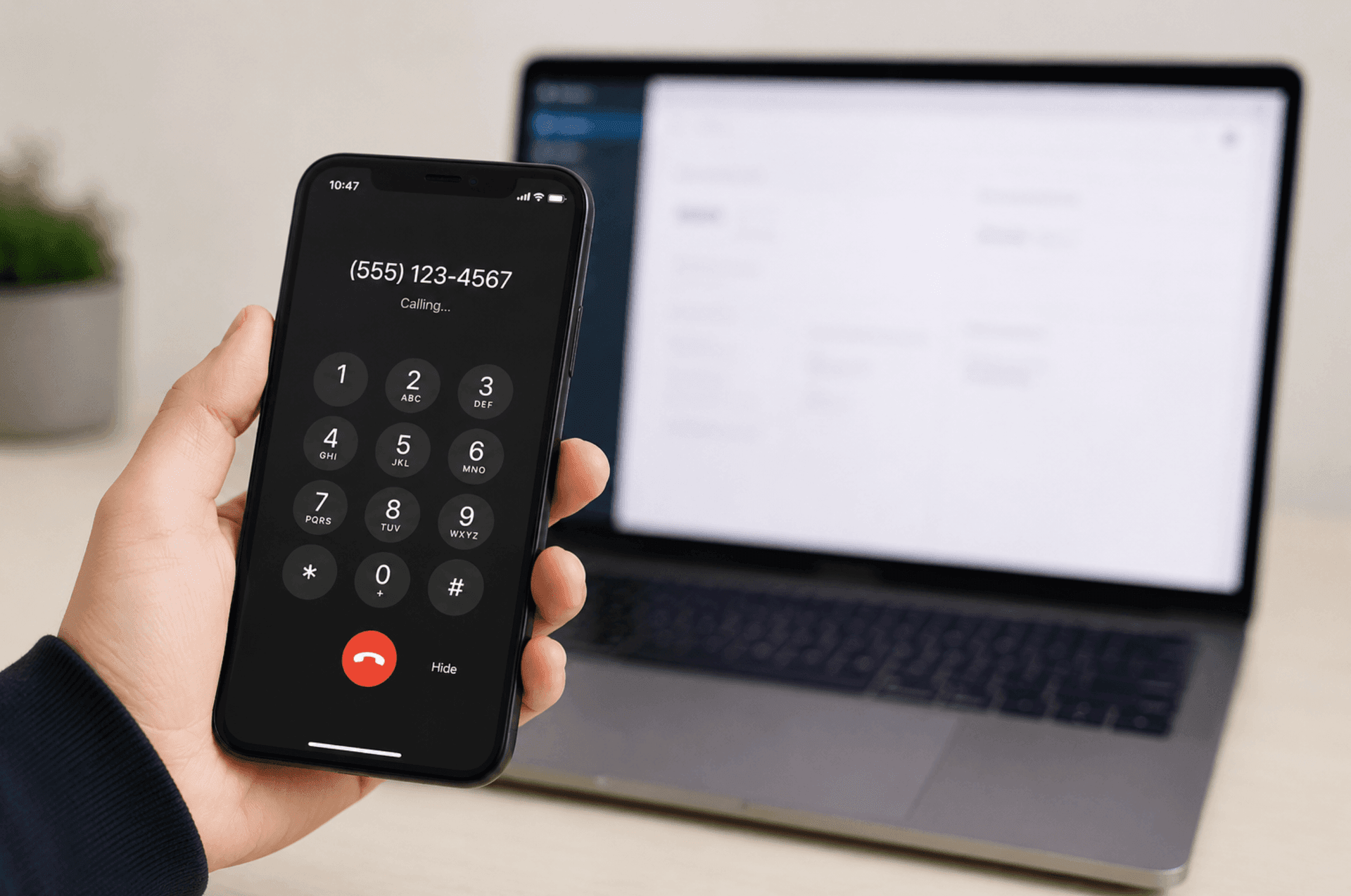
Call from any browser
No app and no SIM. Place the call from your computer or phone in seconds.
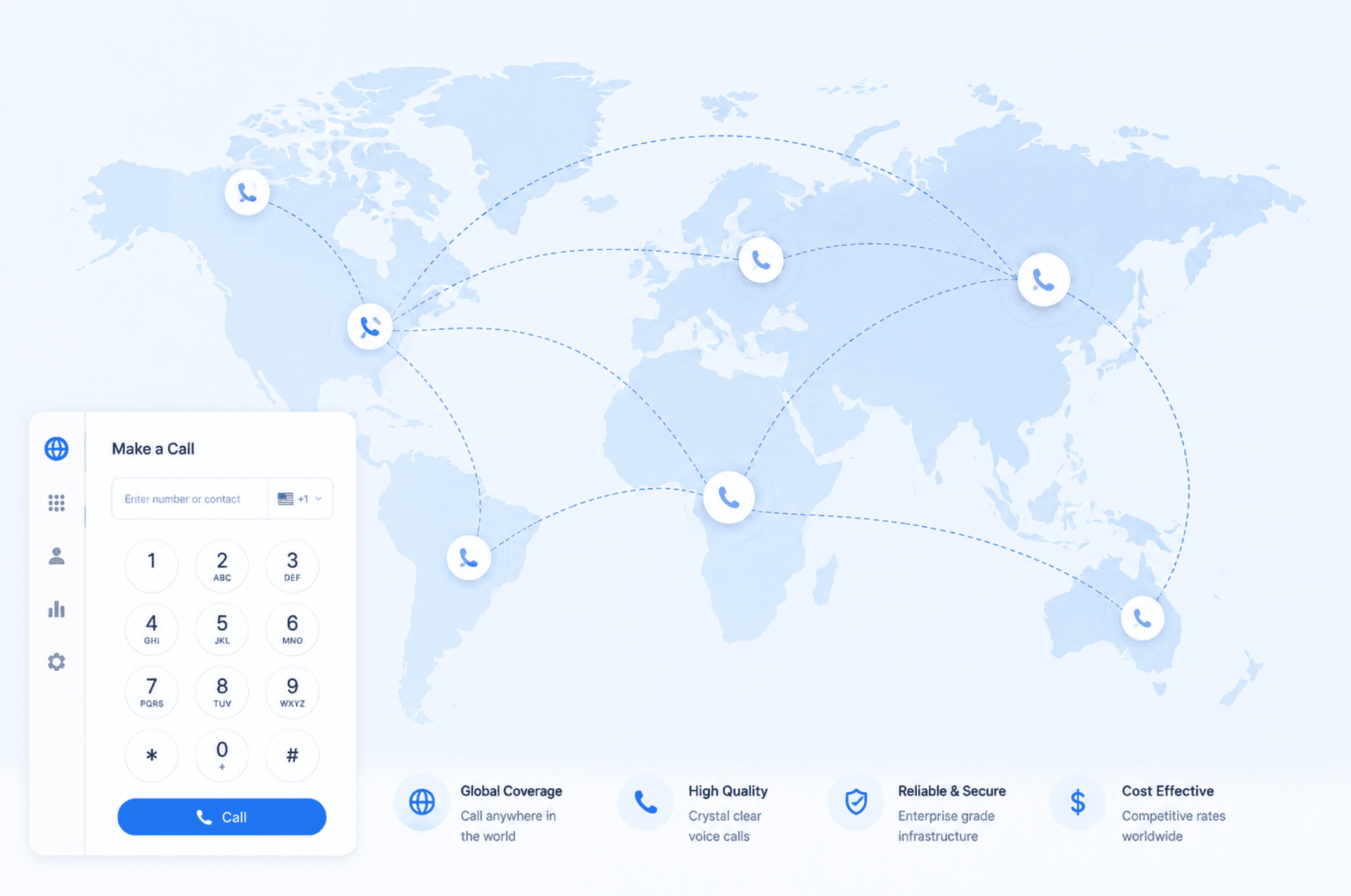
Low rates to 190+ destinations
Clear per minute pricing, shown before you dial. Pay as you go, no monthly fee.
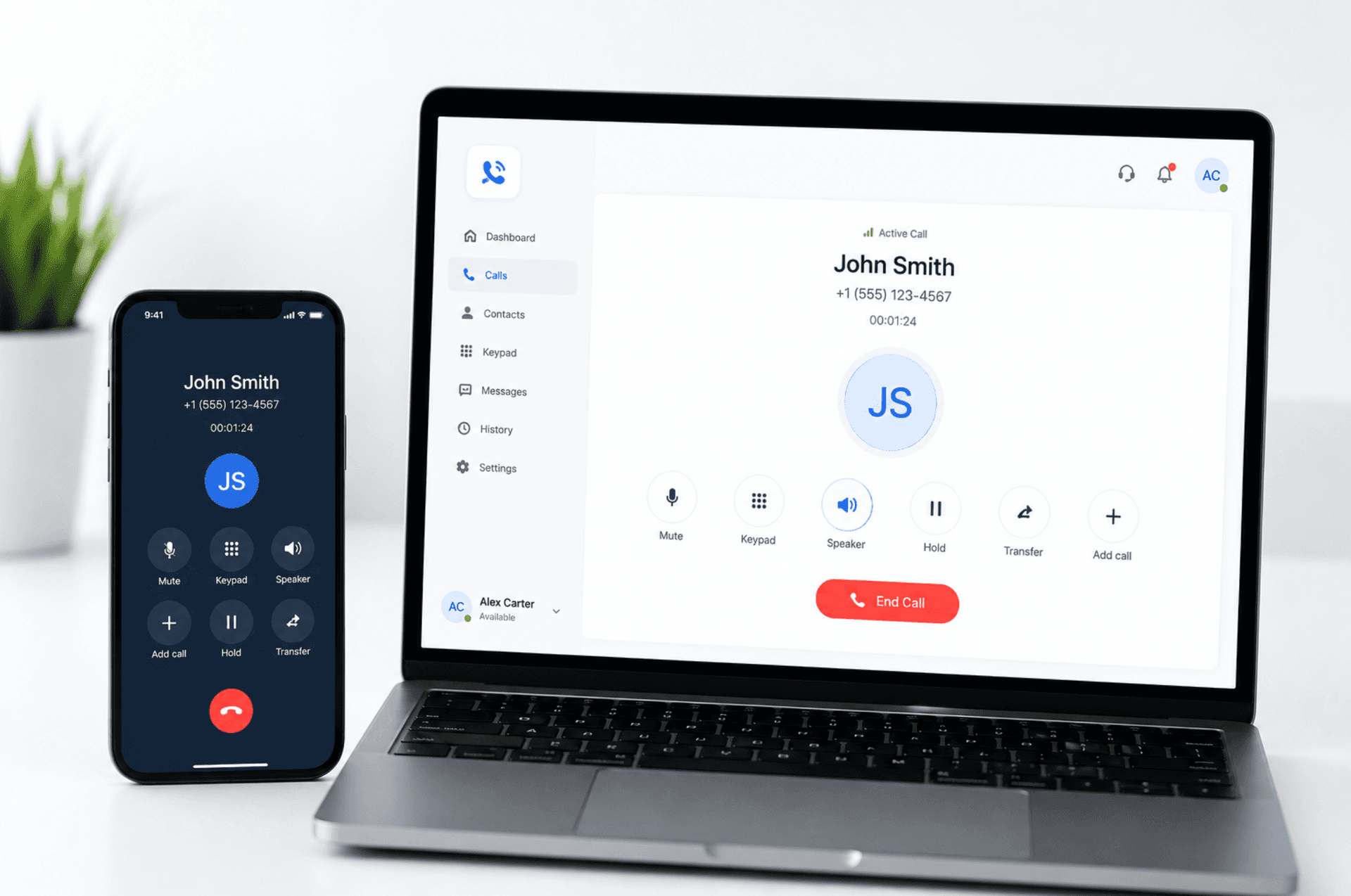
One balance, every device
Start on your laptop, continue on your phone, all at the same low rate.