Call from your Chromebook
Cheap calls in Chrome, nothing to install
On their own, Chromebooks cannot make phone calls. Intercalling fixes that, letting you reach any mobile or landline from Chrome at cheap per minute rates. Nothing to install, no Android phone required, just type the number into your browser. The first call is on us, after that you pay as you go with no subscription.
Product facts
- Outbound: Dial out with no number of your own.
- Inbound: Needs a US/Canada digital number ($2.14 to $5/month).
- No apps: Runs in Chrome, Safari, Edge, and Firefox.
Product facts: Calls from your Chromebook
- Outbound calling: Reach any country in seconds at cheap rates. No dedicated number required.
- Inbound calling: A unique US or Canada digital number lets people call your browser ($2.14 to $5/month).
- App-free: Opens straight in Chrome, Safari, Edge, or Firefox.
Calling from a Chromebook, step by step
Get set up and start dialing from Chrome OS at pay as you go rates.
Open Chrome
Fire up the Chrome browser on your Chromebook and head to Intercalling.com. Chrome delivers the steadiest WebRTC performance on Chrome OS.
Allow Mic Access
When the prompt appears, allow microphone access. Using a headset? Choose it under Chrome site settings for the cleanest audio. Camera access stays optional for conferencing features.
Sign In and Call
Log in, grab a virtual number if you want one, type the number you are calling, and hit call. Your audio travels over WebRTC to the public phone network through Twilio.
Handy Tips for Clear Chrome OS Calls
- Plug in headphones or a USB/Bluetooth headset to cut echo.
- Stay on the latest stable Chrome build to benefit from WebRTC improvements.
- Shut heavy background tabs and apps so the CPU can focus on real-time audio.
What Your Chromebook Needs
What you need for clear calls without surprises.
Browser
We suggest Chrome. Recent Firefox handles calls too, though Chrome on Chrome OS stays the most compatible.
Permissions and Security
Give the site microphone access. Intercalling encrypts your audio streams to keep calls private.
Network
Lean on a stable Wi-Fi connection. For the best results pick 2.4GHz or 5GHz with low latency.
Audio Devices
USB and Bluetooth headsets both work. Set your input and output devices from Chrome site settings.
What makes Intercalling great on Chromebook
Intercalling turns your Chromebook into a fully featured phone. Lean on virtual numbers, AI voice agents, and a real-time copilot to manage calls, transcribe conversations, and get live guidance while you talk.
- Calling entirely in the browser with nothing to install
- Autonomous AI agents for outbound and inbound calls
- Live call transcription and copilot suggestions
- Buy virtual numbers across 190+ countries
Global Calling
Reach mobiles and landlines worldwide through the browser dialer and virtual numbers.
Secure
Encrypted audio streams and protected account access built for business use.
Instant
Be on a call within seconds of signing in. No tricky setup or installs.
Local Numbers
Pick up local numbers from over 190 countries and display a local presence when you call.
Frequently Asked Questions
Is an extension or app needed to call from a Chromebook?
No. Intercalling lives entirely in the browser. Allow microphone access and you can call from Chrome without installing a thing.
Do calls work on guest networks and public Wi-Fi?
Most networks are fine, though public Wi-Fi with strict firewalls or captive portals can block WebRTC. Stick to a trusted network for the steadiest calls.
Can Intercalling handle calls for me?
Yes. Intercalling provides autonomous AI voice agents that manage inbound and outbound calls with advanced speech models.
Can I get a local number so callers can reach me?
Yes. Buy and manage virtual numbers from over 190 countries right inside your Intercalling dashboard.
Ready to start dialing from your Chromebook?
Create an account and place your first call in seconds at pay as you go rates. No downloads, no plugins, just your browser.
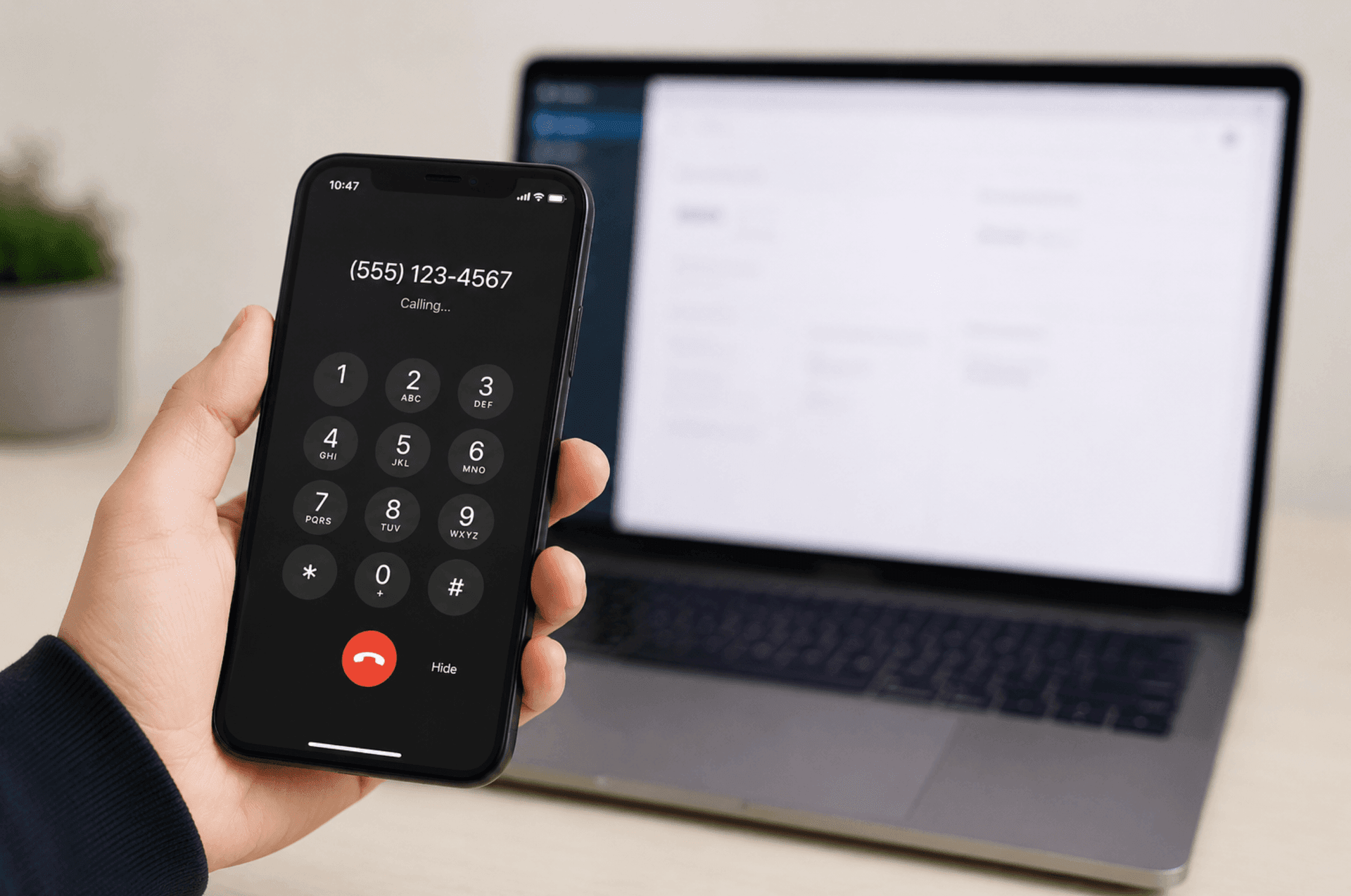
Call from any browser
No app and no SIM. Place the call from your computer or phone in seconds.
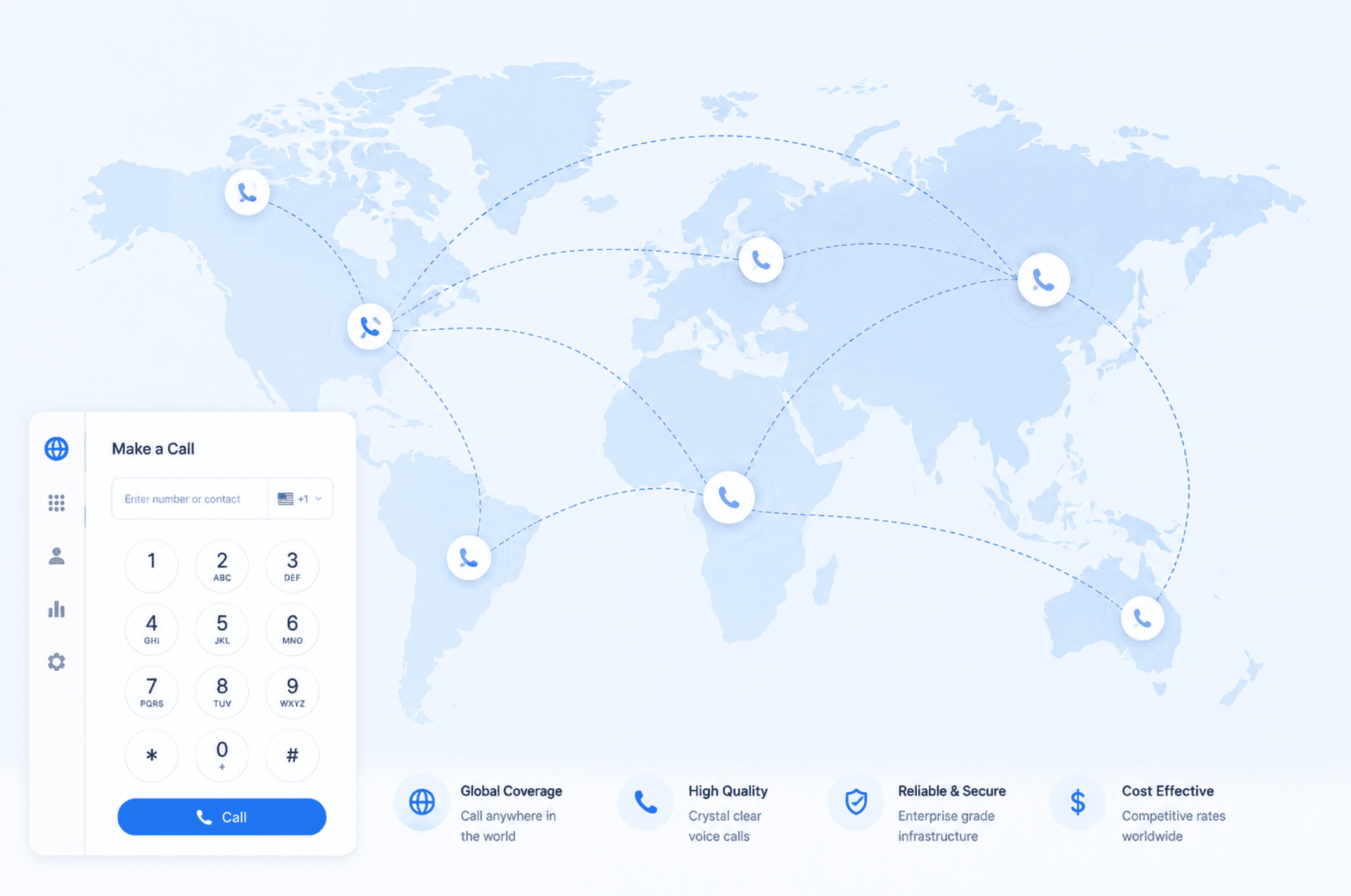
Low rates to 190+ destinations
Clear per minute pricing, shown before you dial. Pay as you go, no monthly fee.
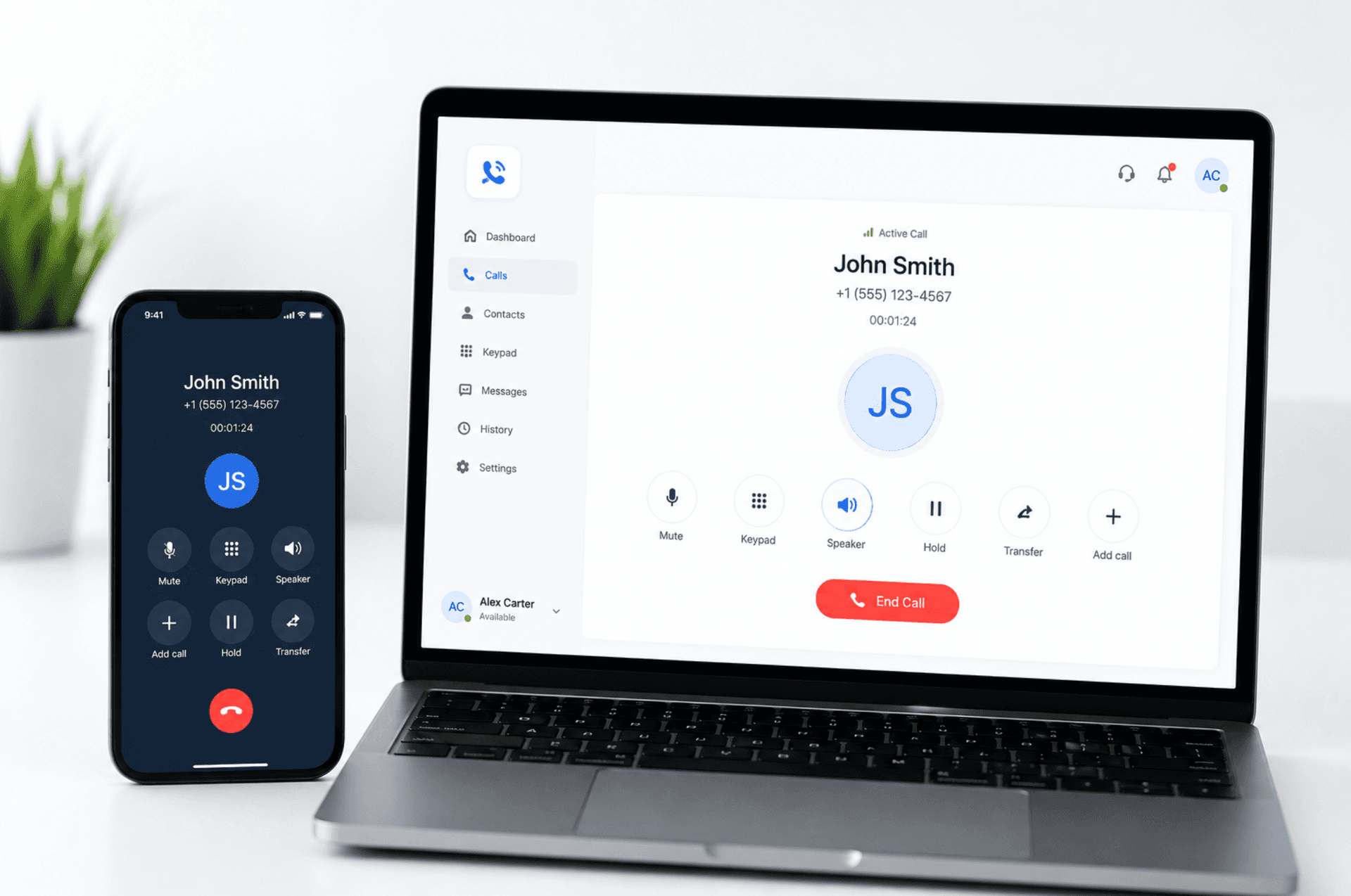
One balance, every device
Start on your laptop, continue on your phone, all at the same low rate.